

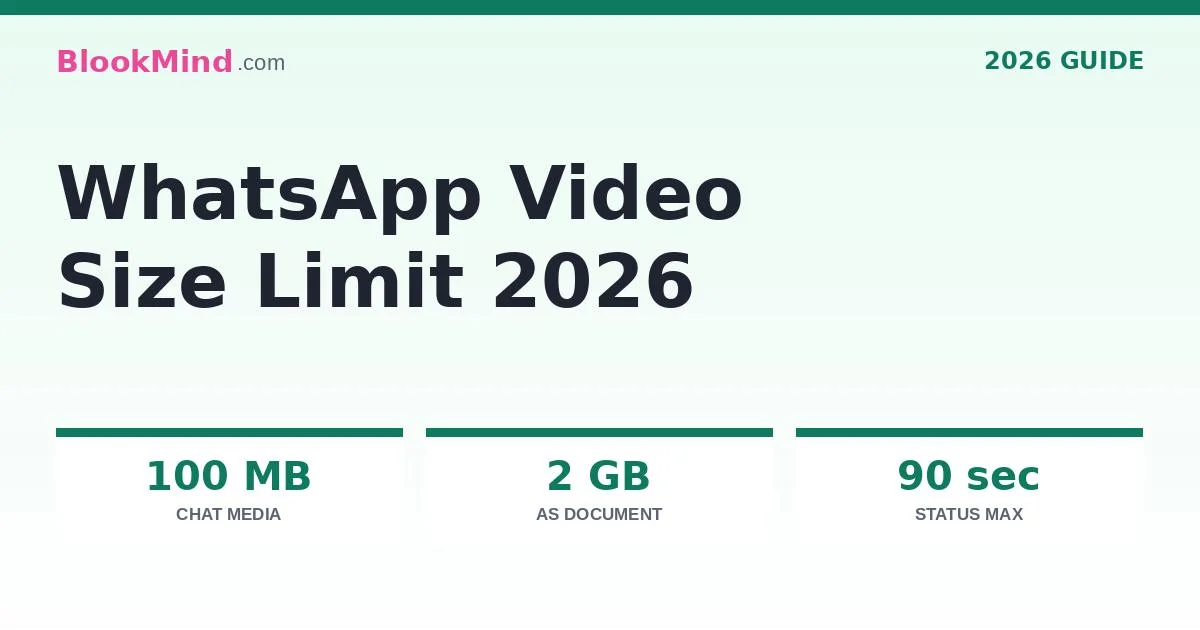
The WhatsApp video size limit is 100 MB for videos sent as media on a good connection (64 MB on a slow one). Send the video as a document instead and the limit jumps to 2 GB at full quality. Status videos can run up to 90 seconds.
Every week, millions of people record a video, open WhatsApp, and hit a wall: the file will not send, or it sends looking like it was filmed through frosted glass. Almost all of those problems come down to one thing — the whatsapp video size limit — and almost everything written about it online is out of date. Old guides still quote a 16 MB limit from years ago. WhatsApp’s own help pages tell a different story today, and this guide follows the official numbers: what the real whatsapp video size limit is for chat videos, documents and Status, why WhatsApp still compresses what you send, and the three reliable ways to send a video that is too big — including the document trick that raises your limit to 2 GB without losing a single pixel.
WhatsApp Video Size Limit at a Glance
WhatsApp does not have one video limit — it has three, depending on how you send the video. This table is the whole whatsapp video size limit story on one screen:
| How you send it | Size limit | Quality | Notes |
|---|---|---|---|
| Video in a chat (media) | 100 MB (fast connection) · 64 MB (slow connection) | Compressed to 720p or 480p | The default gallery/camera route. WhatsApp’s help pages set these as the default video size limits. |
| Video as a document | 2 GB | Original — no compression | Attach → Document → pick the video. Arrives exactly as recorded. |
| Status video | Same media rules | Compressed | Maximum length 90 seconds. HD is not available for Status. |
Two details in that table surprise most people. First, the media limit is not fixed — WhatsApp adjusts it to your connection: 100 MB at 720p on a faster connection, 64 MB at 480p on a slower one. Second, there is no official length limit for chat videos — a 40-minute video is fine if its size fits. Length only becomes a hard rule on Status, at 90 seconds.
Why Does Everyone Still Say the WhatsApp Video Size Limit Is 16 MB?

Because it used to be. For years, 16 MB was the real media limit, and thousands of articles, videos and forum answers repeated it. WhatsApp has since raised the ceiling — first the document limit went to 2 GB, then the media defaults moved up to today’s 100 MB / 64 MB — but old content never got updated, and new articles keep copying old ones.
You may still see behavior that feels like 16 MB in a few situations:
- An old version of WhatsApp that has not been updated in a long time
- WhatsApp Web or Desktop on a slow or unstable connection, where the lower defaults kick in
- A very slow mobile connection, where WhatsApp protects the upload by shrinking harder
- Third-party “WhatsApp limit” tools built years ago around the old number
The fix for the first three is simple: update the app and send on a decent connection. The fourth — tools built for 16 MB — is actually still useful, because a video compressed under 16 MB sends instantly on any connection, in any version. Our WhatsApp-friendly compressor includes a dedicated 16 MB chip for exactly that reason.
Why WhatsApp Compresses Your Videos (and Ruins Them)
Even under the limit, a video sent as media does not arrive untouched. WhatsApp re-encodes it — typically down to 720p on a good connection — to save bandwidth and storage across billions of messages. That re-encode is why a crisp 4K clip can arrive looking soft, and why text on screen recordings turns mushy.
You have three defenses:
- Send as a document — the 2 GB route skips compression completely (steps below).
- Use the HD option when WhatsApp offers it on media sends — it keeps more detail than the standard send, though it is still not the original file.
- Compress it yourself, properly — a video you shrink with a real compressor at the right bitrate almost always looks better than the same video after WhatsApp’s rushed automatic squeeze.
WhatsApp supports these video formats: MP4, MOV, MKV, AVI, 3GP and FLV. MP4 (H.264) is the safe choice — it plays natively for every receiver and compresses the most predictably.
How to Send a Large Video on WhatsApp — 3 Working Methods
Your video is bigger than the whatsapp video size limit for media. Here are the three methods that actually work, in the order you should try them:

Send it as a document (best quality, up to 2 GB)
Open the chat, tap the attach (paperclip / +) icon, choose Document instead of Gallery, and pick your video. WhatsApp sends the original file untouched — full resolution, full quality — as long as it is under 2 GB. The receiver downloads it and plays it like any file. This is the right method for anything that matters: work footage, family videos you want to keep, screen recordings with text.
Compress the video to fit (best for quick sharing)
If the video just needs to be watched in the chat — a clip for friends, a quick update — compress it under the media limit yourself. Drop it into a compressor, pick your target (100 MB for the media route, or 16 MB for guaranteed-fast sending anywhere), and send the result as a normal video that plays inline. The section below walks through it.
Share a cloud link (for files over 2 GB)
Anything bigger than 2 GB cannot travel through WhatsApp at all. Upload it to Google Drive, Dropbox or a similar service and paste the link into the chat. It works, but it is the weakest option: the receiver needs the link to stay alive, may need an account, and watches a stream instead of owning the file.
How to Compress a Video for WhatsApp in 4 Steps
Compressing it yourself beats WhatsApp’s automatic compression every time, because you choose the trade-off. Here is the exact process:
Check the size you are starting from
Long-press the video in your gallery and open its details. A 3-minute 1080p phone video is often 300–400 MB — far over the media limit, but no problem at all for the document route. Compression is for when you want the video to play inside the chat.
Open the compressor and drop the video in
Use our free Compress Video tool with the WhatsApp chip. Nothing is uploaded — the work happens in your browser, so private videos stay private.
Pick your target size
Choose 16 MB for a video that sends fast on any connection and any WhatsApp version, or type a custom target up to 100 MB for maximum quality on the media route. The tool shows you the expected quality before you start.
Compress, download, send as a normal video
Download the result and send it through the Gallery route. It plays inline in the chat, at the quality you chose — not the quality WhatsApp’s compressor felt like giving you.
Your video is too big for WhatsApp?
Shrink it to 16 MB (or any size) free — in your browser, nothing uploaded, no watermark.
Compress My Video FreeWhatsApp Status Video Limits
Status plays by stricter rules than chats. The whatsapp video size limit for Status follows the media limits, but length is capped separately — and this is where most Status uploads fail:
- Maximum length: 90 seconds — longer videos must be trimmed or split into parts
- Size: the same media defaults apply (100 MB / 64 MB by connection)
- No HD option: WhatsApp states HD media is not available for Status updates, so expect visible compression — record Status videos well-lit and close-up where possible
- Format: MP4 works best; vertical (9:16) fills the screen
The Best Video Settings for WhatsApp
If you export or compress videos for WhatsApp regularly, these settings land you safely under the whatsapp video size limit with the best quality the app will preserve:
| Setting | For chat media | For document sends |
|---|---|---|
| Resolution | 720p (1280×720) or lower | Original — 1080p or 4K is fine |
| Bitrate | 2–4 Mbps holds 720p nicely | Original |
| Format / codec | MP4 · H.264 + AAC | Any supported format; MP4 safest |
| File size target | Under 100 MB (or 16 MB for universal fast sending) | Under 2 GB |
| Frame rate | 30 fps | Original |
Not sure what bitrate your video needs for a target size? Bitrate × length = file size — our Video Bitrate Calculator does that math in both directions, free.
5 WhatsApp Video Mistakes That Waste Your Quality
- Sending a 4K video as media — WhatsApp will crush it to 720p anyway; you paid the upload time for quality nobody receives. Send it as a document instead.
- Re-sending a video you received — every media forward can mean another compression pass. Forward the document version, or download and re-send the original file.
- Recording at maximum settings for a Status — Status has no HD and a 90-second cap; a clean 720p clip beats a crushed 4K one.
- Compressing with a random app that adds a watermark — browser compressors do the same job with no watermark and no upload of your private video.
- Giving up and sending a blurry mess — between the 2 GB document route and proper compression, there is almost no video that cannot be sent well.
Frequently Asked Questions
What is the WhatsApp video size limit in 2026?
According to WhatsApp’s own help pages, videos sent as media in a chat can be up to 100 MB on a faster connection (720p) or 64 MB on a slower one (480p). Videos sent as documents can be up to 2 GB with no compression. Status videos follow the media rules with a maximum length of 90 seconds.
How do I send a 150 MB video on WhatsApp?
Two ways. Send it as a document (attach → Document → choose the video) and it goes at full quality, since the document limit is 2 GB. Or compress it under 100 MB with a free compressor and send it as a normal chat video that plays inline.
Can we send a 10 minute video on WhatsApp?
Yes. WhatsApp sets no official length limit for chat videos — only size limits. A 10-minute video sends fine as a document (up to 2 GB), or as media if it is compressed under the 100 MB media limit. Only Status has a length cap: 90 seconds.
Can I send a 2.5 GB video on WhatsApp?
No — 2.5 GB is over even the document limit of 2 GB. Compress the video below 2 GB (easy for almost any video with a good compressor, with barely visible quality change), split it into two parts, or upload it to a cloud service and share the link in the chat.
How to reduce video size in WhatsApp?
WhatsApp itself only reduces size by compressing during a media send — you cannot control it. To reduce a video’s size properly, compress it before sending with a browser tool: drop the video in, choose a target like 16 MB or 100 MB, download the result and send that. You keep control of the quality trade-off.
Why does WhatsApp say my video is too large?
Because the file exceeds the limit for the route you are using — over 100 MB as media (64 MB on slow connections), or over 2 GB as a document. Send it as a document instead, compress it under the media limit, or check your connection: on slow networks WhatsApp applies the lower 64 MB default.
Does WhatsApp compress videos sent as documents?
No. The document route sends the original file untouched — same resolution, same bitrate, same quality — up to the 2 GB limit. That is exactly why it is the right choice for videos you care about. (We cover WhatsApp’s media compression in depth in our companion guide, “Does WhatsApp Compress Videos?”)
What is the maximum length of a WhatsApp Status video?
90 seconds, per WhatsApp’s official help pages. Longer videos need trimming before posting, or splitting into consecutive 90-second parts. HD is not available for Status, so expect some compression regardless of the original quality.
Which video format is best for WhatsApp?
MP4 with H.264 video and AAC audio. WhatsApp also supports MOV, MKV, AVI, 3GP and FLV, but MP4 plays natively for every receiver, uploads fastest and compresses most predictably — every compressor (including ours) outputs it by default.
Why does my WhatsApp video look blurry after sending?
Because media sends are re-encoded — usually down to 720p or 480p — which softens detail, especially screen text. Send the video as a document for untouched quality, use the HD send option when offered, or compress the video yourself at a sensible bitrate before sending so WhatsApp’s own squeeze has less work to do.
Can I send a 1 GB video on WhatsApp?
Yes — as a document. The document limit is 2 GB, so a 1 GB video sends at full original quality through the attach → Document route. It will not send as a chat media video, since that limit is 100 MB.
What is the WhatsApp document size limit?
2 GB, according to WhatsApp’s help pages — and it applies to any file type sent through the Document option, including videos. It is the single most useful limit on WhatsApp, because document sends skip compression entirely.
Related Tools & Guides on BlookMind
- Compress Video to 8MB — with the 16 MB WhatsApp chip for universal fast sending
- Compress Video to 25MB — the email-attachment specialist
- Video Bitrate Calculator — work out any video’s size before you send it
- All BlookMind Tools — the full free toolkit